Struggling to access your Telegram account because the SMS verification code isn’t arriving? While scanning a QR code is the default for linked devices, logging in via SMS remains the primary fallback method—if you know how to trigger it correctly.
In this technical guide by RubixADS, we bypass the generic advice and show you exactly how to force an SMS login across all platforms.
What you will learn in this guide:
- Step-by-step SMS Login: Direct methods for Telegram Web, Android, and iOS (with exact UI screenshots).
- The “No Code” Troubleshooting Protocol: A strict checklist to bypass network blocks, clear cache loops, and force Telegram to send the SMS when the timer freezes.
Let’s get your account access restored immediately.
How to Log in to Telegram Web with SMS
Telegram Web is incredibly convenient when you’re working on a computer and want to keep your chats open in a browser tab. Here is the step-by-step process to log in using your phone number and an SMS code.
Check this 5 Slides:
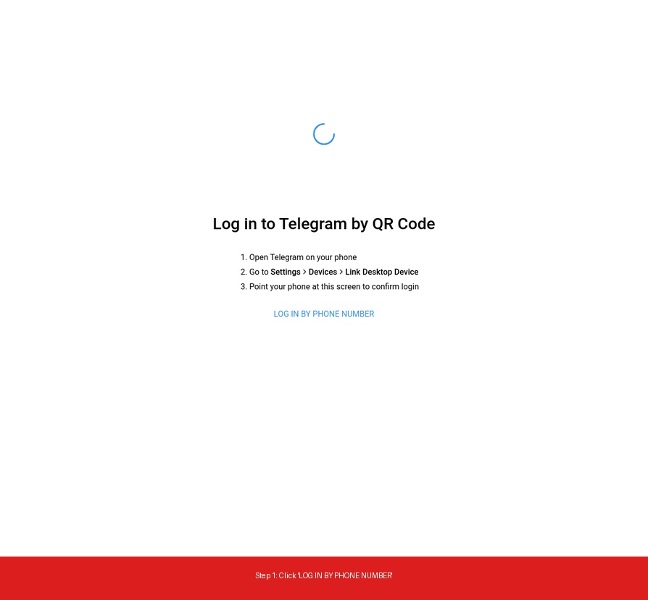
Step 1: Go to the Telegram Web Login Page
Open your favorite web browser and navigate to web.telegram.org. By default, Telegram might show you a QR code login screen.
To switch to the SMS method, look at the bottom of the screen and click on the “LOG IN BY PHONE NUMBER” button.
Step 2: Enter Your Phone Number
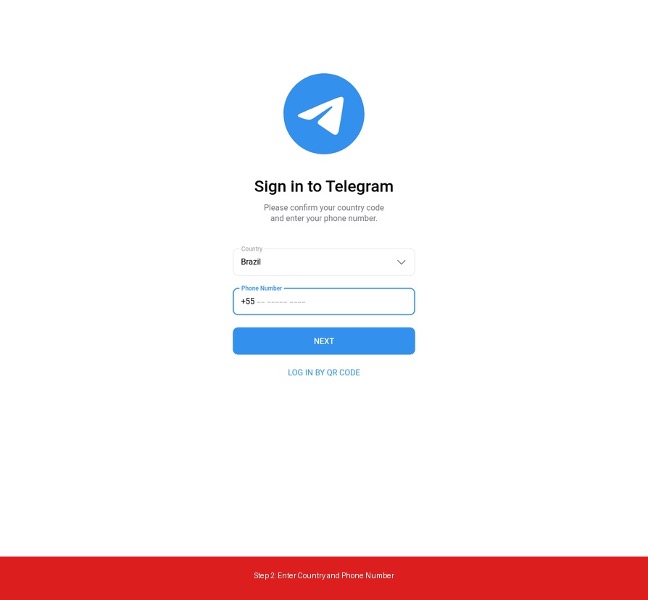
Once you click the button, you’ll be taken to the phone number entry screen.
- Select your country: Click on the country dropdown menu and select your country (e.g., USA). This will automatically fill in the correct country code (e.g., +1).
- Enter your phone number: Type in your mobile number without any spaces or dashes.
- Click NEXT: Once your number is entered correctly, click the blue “NEXT” button.
Step 3: Enter the SMS Verification Code
Telegram will now send a 5-digit verification code to your phone via SMS (or to your Telegram app if you are already logged in on another device).
Check your phone’s messages, find the code, and type it into the boxes provided on the screen.

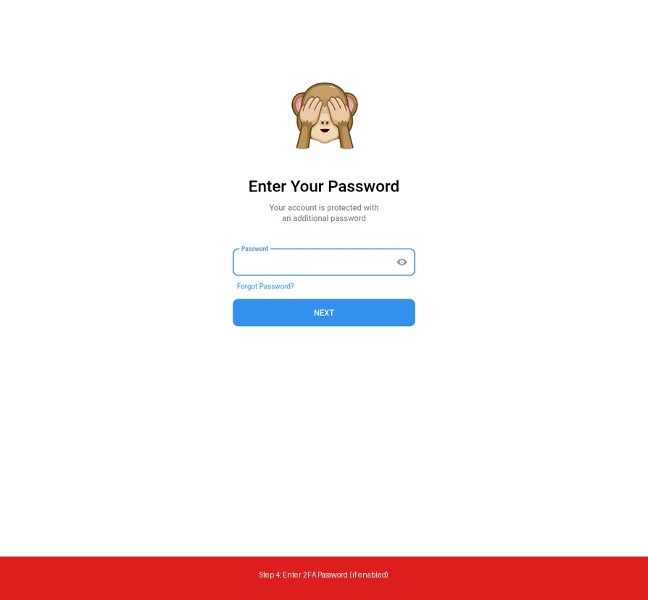
Step 4: Enter Your 2FA Password (If Enabled)
If you have Two-Step Verification (2FA) enabled on your account for extra security, Telegram will prompt you to enter your cloud password.
Type your password and click “NEXT”.
Step 5: Success!
Congratulations! You are now successfully logged into Telegram Web. You can see all your chats, channels, and contacts right in your browser.

How to Log in to Telegram on Android via SMS
Logging into the Telegram app on an Android device is a seamless experience. Here is how to do it:
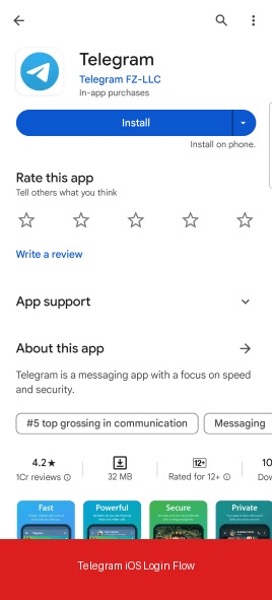
- Download the App: If you haven’t already, download the official Telegram app from the Google Play Store.
- Open the App: Tap “Start Messaging”.
- Enter Your Phone Number: Select your country code and type in your mobile number. Tap the arrow icon to proceed.
- Receive the SMS: Telegram will send an SMS with a 5-digit code to your phone. In many cases, Android will automatically detect the SMS and fill in the code for you!
- Enter the Code Manually (if needed): If it doesn’t auto-fill, open your SMS app, copy the code, and paste it into Telegram.
- Enter 2FA Password: If you have Two-Step Verification enabled, enter your cloud password.
You are now logged in and ready to chat!
How to Log in to Telegram on iOS (iPhone/iPad) via SMS
The process for Apple users is very similar to Android. Follow these steps to get connected:
- Download the App: Get the official Telegram Messenger app from the Apple App Store.
- Launch the App: Open Telegram and tap “Start Messaging”.
- Input Your Number: Choose your country from the list and enter your phone number. Tap “Next” in the top right corner.
- Check for the SMS: Look for a text message from Telegram containing your 5-digit login code.
- Enter the Code: Type the code into the provided fields in the Telegram app.
- Enter 2FA Password: If prompted, enter your Two-Step Verification password.
That’s it! Your chats will instantly sync to your iPhone or iPad.
How to Login Unlimited Accounts on Telegram iOS
If you manage massive marketing campaigns or multiple communities, the official Telegram app’s 3-account limit is a major bottleneck. For power users searching for how to login unlimited accounts on Telegram iOS, the native app won’t work. However, there is a proven, secure workaround using verified Telegram API clients.
Here is how you can bypass the restrictions completely.
How to use Multiple Accounts on Telegram iOS (Official Method)
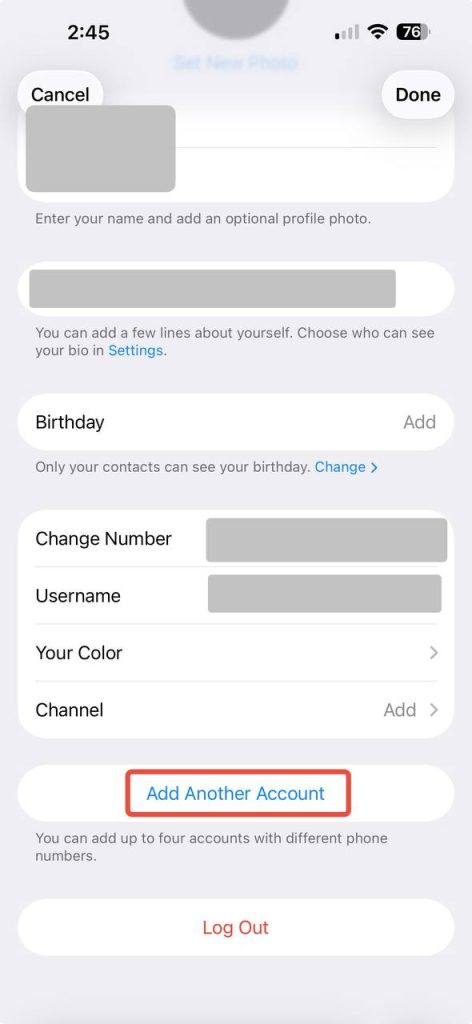
Before scaling up, it’s worth noting the baseline. The official Telegram iOS app only allows up to three phone numbers natively (or four for Premium users). You can add them by navigating to Settings > Edit > Add Another Account. But when you hit this cap, you must switch to a specialized client.
The Unlimited Solution: Using Nicegram for iOS
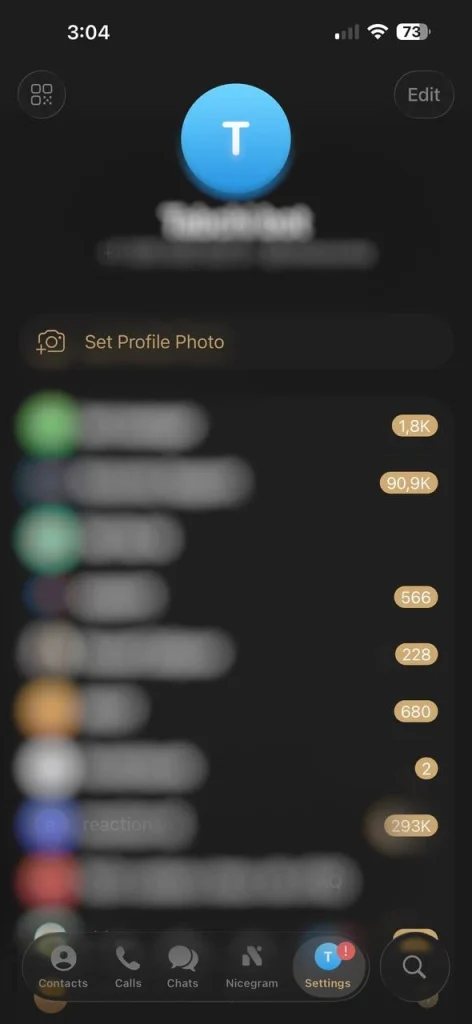
To achieve truly unlimited logins, you need Nicegram. Built directly on the official Telegram API, Nicegram removes the standard account caps, allowing you to add and manage an infinite number of profiles from a single device without constantly logging out.
Step-by-step guide to adding unlimited accounts
- Download Nicegram from the official iOS App Store (It is 100% safe and uses Telegram’s native encryption).
- Launch the app and tap Start Messaging.
- Log in to your first account using the standard SMS verification code.
- To add your next profiles, tap your Profile icon (or long-press the Settings gear) and select Add Account.
- Repeat this process. Nicegram imposes no hard limits, meaning you can repeat step 4 for 10, 50, or 100+ business numbers.
⚠️ Technical Warning for Multi-Account Users
When running unlimited accounts, ensure each profile is registered with a real, physical SIM card. Telegram’s 2026 anti-spam algorithm actively scans for network anomalies. Adding dozens of cheap VoIP or virtual numbers from a single IP address can trigger an instant shadowban across all your connected sessions.
Troubleshooting Telegram SMS Login Issues
Sometimes, things don’t go as smoothly as planned. If you are struggling to receive your Telegram SMS verification code, you are not alone. Here are the most common issues and how to fix them like a pro.
I’m not receiving the Telrgram SMS code!
This is the most common issue users face. Here is a checklist to resolve it:
- Check your phone number format: Ensure you selected the correct country code and didn’t add any leading zeros that aren’t required.
- Check your network connection: Make sure you have a strong cellular signal. Try toggling Airplane Mode on and off to reset your connection.
- Check for SMS blockers: Ensure your phone or carrier isn’t blocking shortcode SMS messages or marking them as spam.
- Wait it out: Sometimes carrier networks are delayed. Wait at least 5-10 minutes before requesting a new code. Requesting too many times in a row will cause Telegram to temporarily block your attempts.
Telegram sent the code to my ‘other device’ instead of SMS!
By default, if you are already logged into Telegram on another device (like an old phone, an iPad, or a desktop computer), Telegram will send the login code as a message within the Telegram app on that device, rather than sending an SMS
The Fix:
- Check your other devices where Telegram might be logged in.
- If you no longer have access to those devices, look for an option on the login screen that says “Tap to get a code via SMS” or “Send code via SMS”. Tap that to force Telegram to send a text message instead.
I’m using a virtual number and it’s not working
Telegram has strict anti-spam policies and frequently blocks VoIP (Voice over IP) or temporary virtual phone numbers from receiving verification codes.
The Fix: You must use a real, physical SIM card number from a legitimate mobile carrier to reliably create and log into a Telegram account.
The “Call Me” Alternative
If SMS simply refuses to work, Telegram usually offers a fallback option. After a countdown timer expires on the code entry screen, an option to receive the code via a phone call will appear. Tap “Call Me”, and an automated voice will call your phone and dictate the 5-digit code to you.
Conclusion
Logging into Telegram using SMS is a straightforward process whether you are on a computer, an Android phone, or an iPhone. By following the steps outlined above, you should be able to access your account in seconds.
If you run into trouble, remember to check your number format, ensure you aren’t logged in elsewhere, and use the “Call Me” feature if the SMS gets lost in the digital void.
Stay connected and enjoy messaging with Telegram! For more tips, tricks, and guides, keep exploring RubixAds.